Android NFC Setup Guide
Step 1 Check Supported Devices
For Android devices not listed in supported devices, you can search Google with 'device name + NFC' to confirm.
Step 2 Enable NFC Function
If the NFC button is not in the status bar, you can add it by tapping the edit icon at the top of the status bar.
NFC display methods may vary by Android smartphone model. It may be displayed as NFC tag read/write or default mode/card mode. In this case, set the NFC function to default mode.
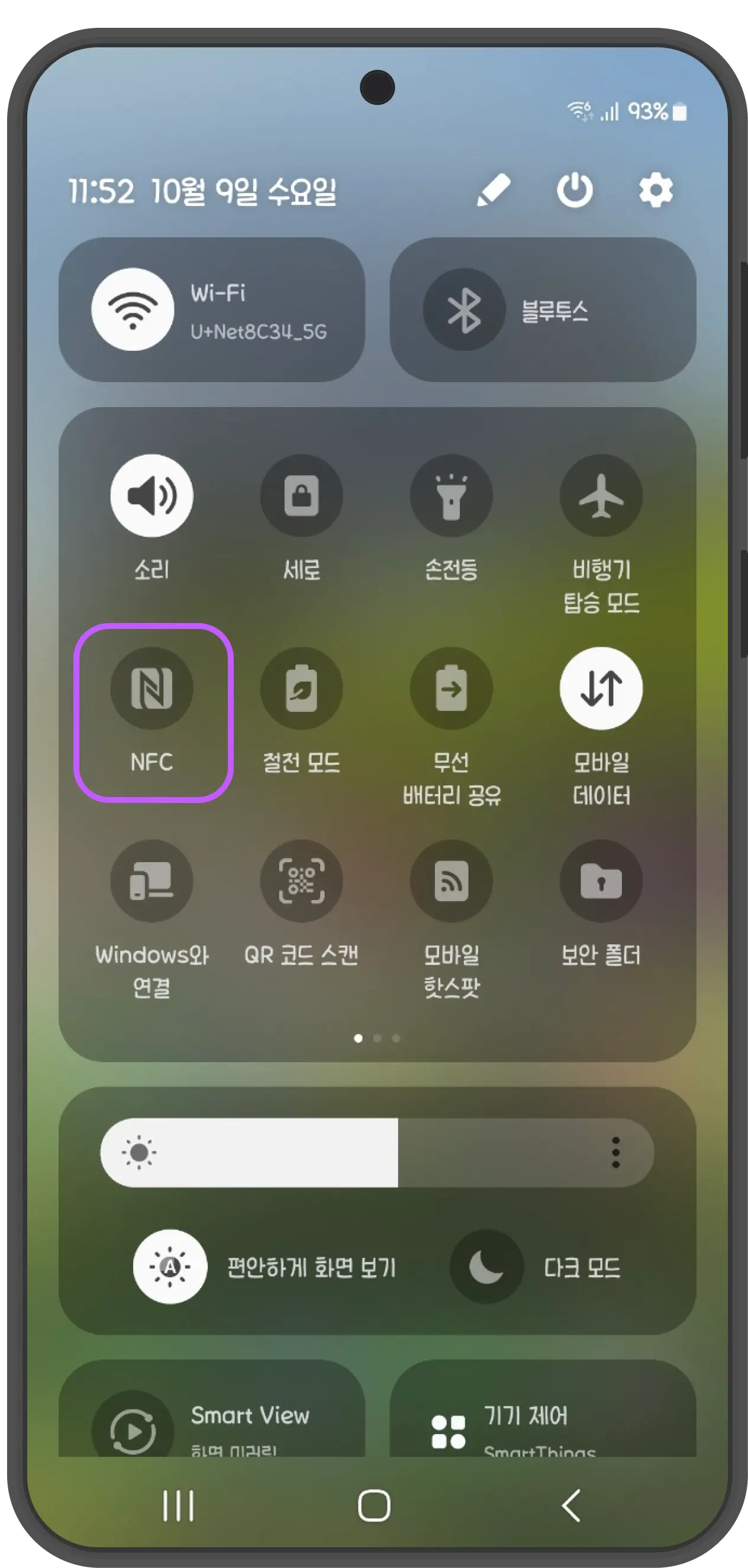
1. Drag down the status bar to open settings
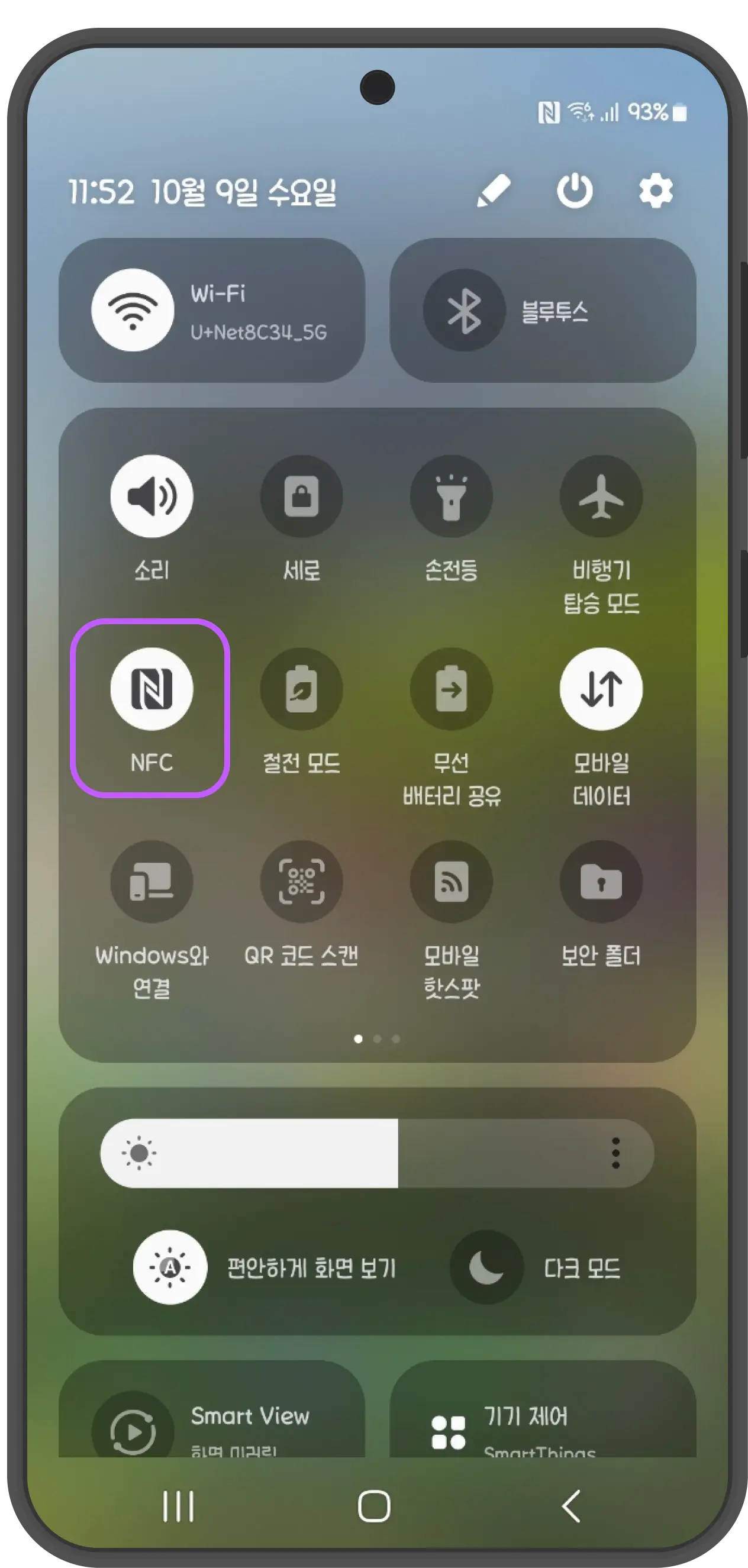
2. Find and enable NFC function
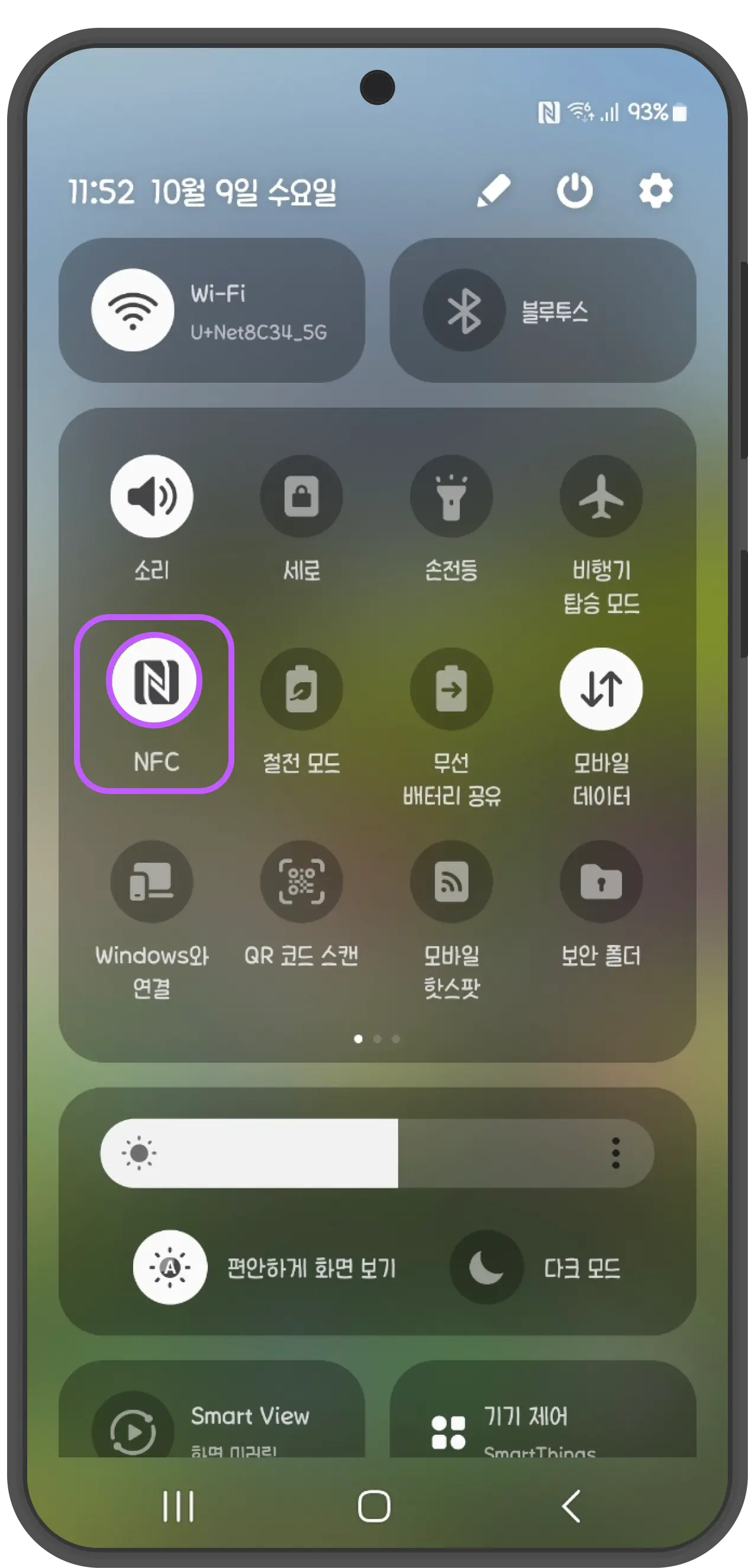
3. Long press the NFC button to open settings
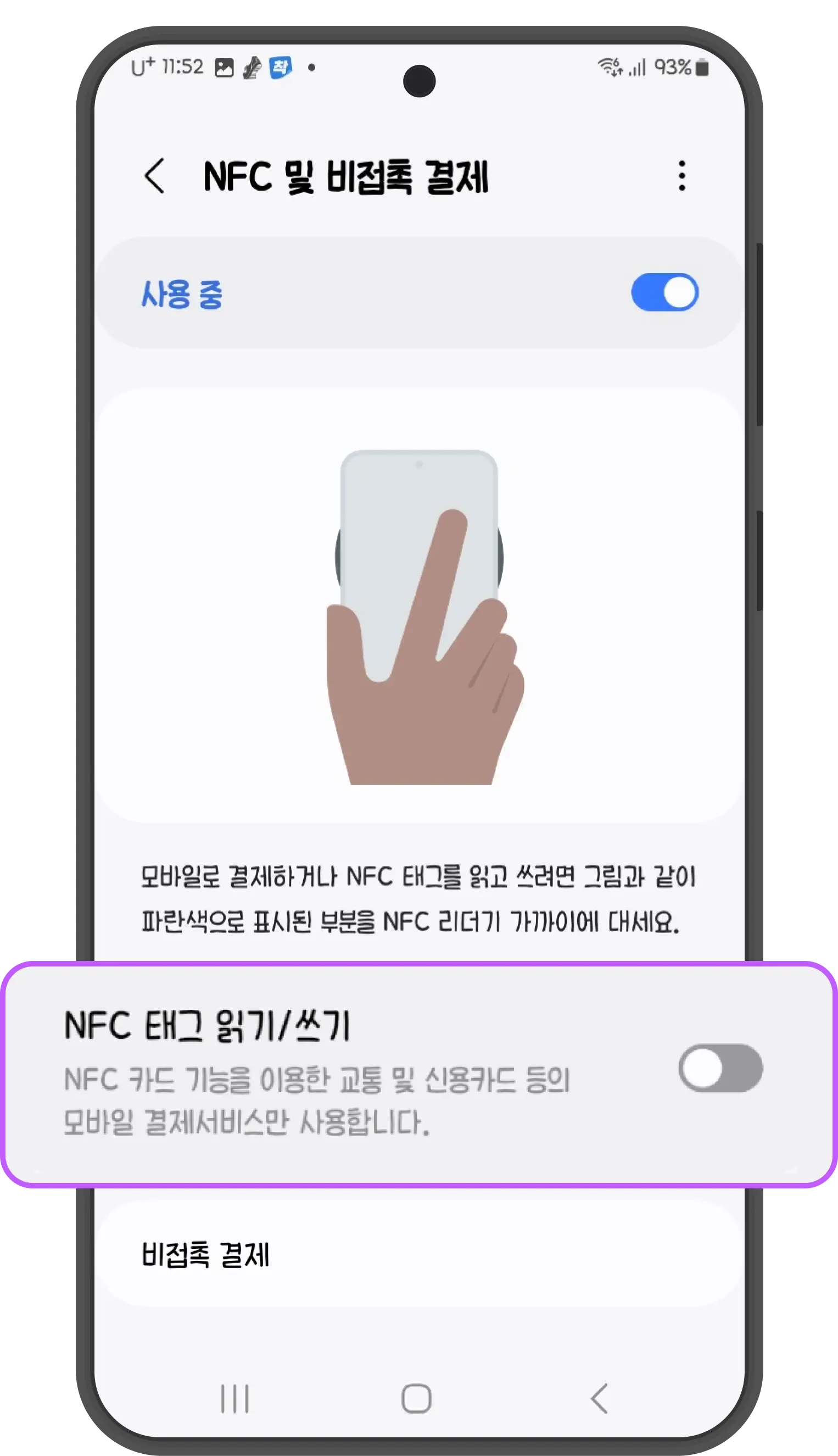
4. Confirm NFC tag read/write is enabled
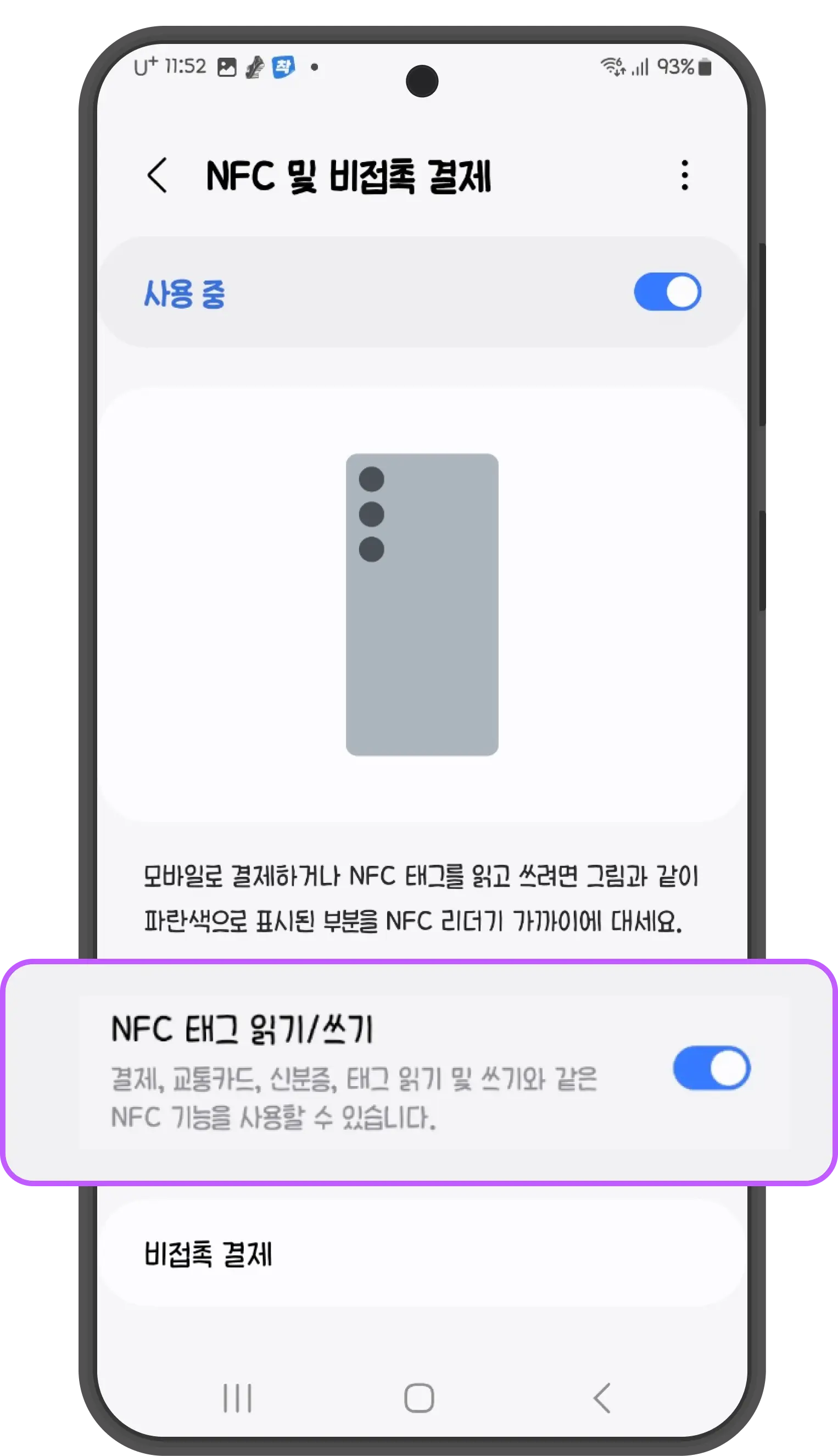
5. Enable NFC tag read/write or set to default mode
Step 3 Recognize NFC Tag
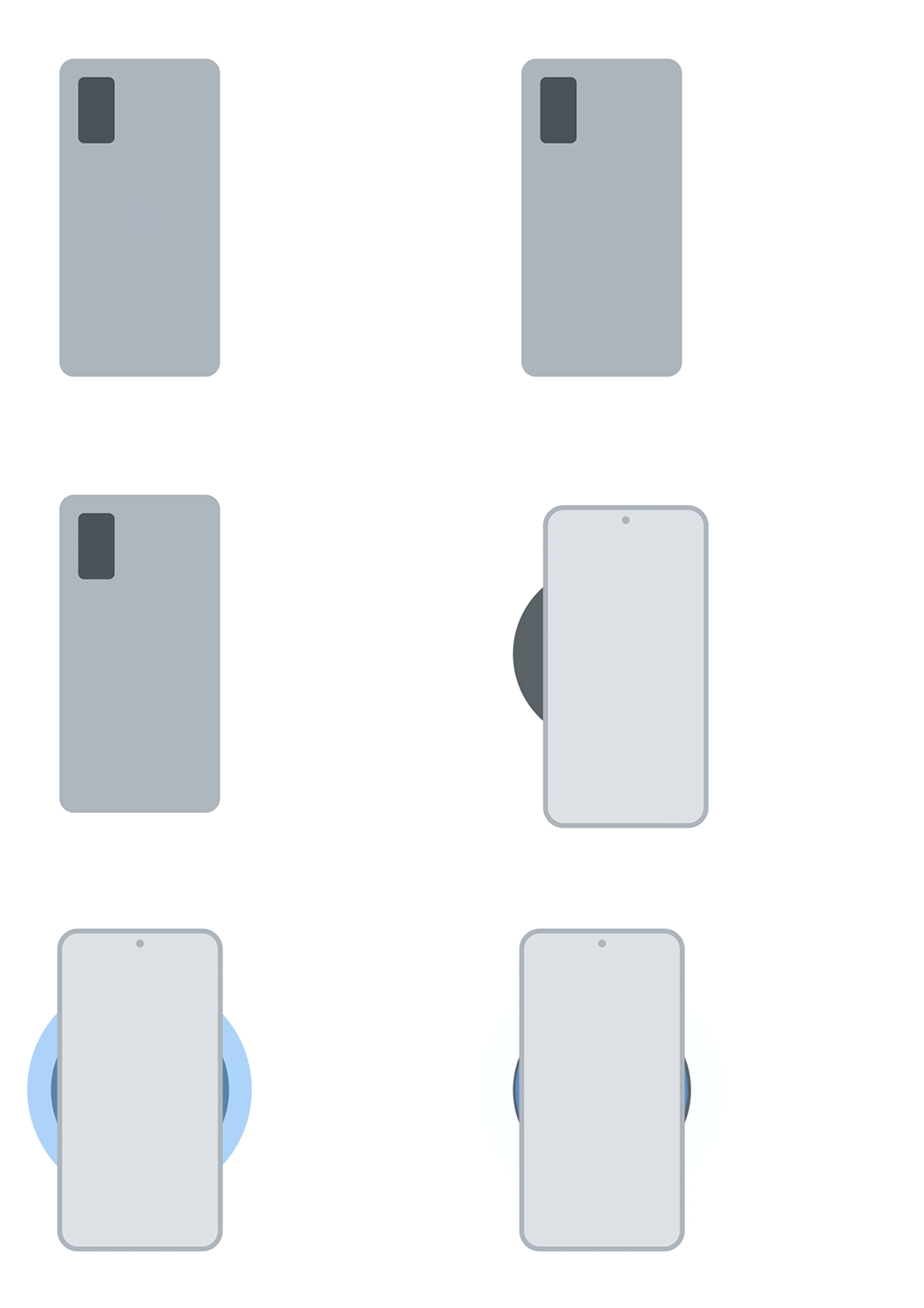
Please recognize the NFC tag at the correct location.
NFC antenna location may vary by smartphone model. Generally, for Android smartphones, it is located in the center or top of the back.
Step 4 Check NFC Chip Damage
If the NFC tag still doesn't work after attempting, please follow the guide to check.
Android NFC FAQs
Common issues when setting up and using NFC on Android devices.
My Android device says NFC is not available
Some budget Android devices or older models may not support NFC. If there is no NFC option in 'Settings > Connections > NFC', your device does not support NFC. Check the supported devices page.
I don't see the NFC button in the status bar
Drag down the status bar and tap the edit (pencil) icon at the top. Find the NFC button and drag it to the active area. Depending on your device, it may be labeled as 'Near Field Communication' or 'NFC/Payment'.
NFC is on but tags are not recognized
After enabling NFC, make sure 'NFC tag read/write' is also enabled. Check Settings > Connections > NFC to enable this option. Also check the following: 1) Remove thick or metal cases 2) Disable airplane or power saving mode 3) Ensure screen is on and unlocked 4) The first 2-3 seconds after unlocking work best 5) Move the phone slightly around the NFC tag 6) Remove signal interference (metal objects, etc.)
NFC settings look different on Samsung Galaxy
On Samsung Galaxy devices, go to 'Settings > Connections > NFC and payment'. Menu structure may vary slightly by One UI version, but the basic setup is the same. Make sure both NFC and 'Tap and pay' are enabled.
Are settings the same for LG, Xiaomi, and other brands?
Most Android devices have similar settings, but menu locations and names may differ by manufacturer. LG uses 'Networks', Xiaomi uses 'Connection & sharing'. If hard to find, search for 'NFC' in settings.
Where should I place my phone when tagging?
On most Android devices, the NFC antenna is in the center of the back. It's often near the camera or logo. The exact location varies by model, so check supported devices or slowly move the NFC tag around the back of your phone.
Tag is recognized but shows 'empty tag'
This means the NFC tag is detected but has no content. Occasionally, programming may be missing during production. If this happens, please contact customer service for a quick response.
Have more questions?
Feel free to contact us anytime. We'll provide quick and accurate answers.

Contact Us

Company: VVFY STUDIO Inc. | CEO: Kyubaek Kim
Address: 213, 2F, S-Factory Ga(Bi) Bldg, 11, Yeonmujang 15-gil, Seongdong-gu, Seoul, Korea
Business Registration No.: 219-87-03830
Email: hello@vvfystudio.com
Privacy Officer: Kyubaek Kim
Hosting: Vercel
Terms of Service|Privacy Policy
© VVFY STUDIO ALL RIGHTS RESERVED.
VIVIFIED
Portfolio