iPhone NFC Setup Guide
Step 1 Check Supported Devices
iPhone supports NFC from iPhone 7 series onwards (models released after August 2016).
Step 2 Enable NFC on Older iPhones
NFC is automatically enabled from iPhone XR onwards. Only follow this guide for models before iPhone XR.
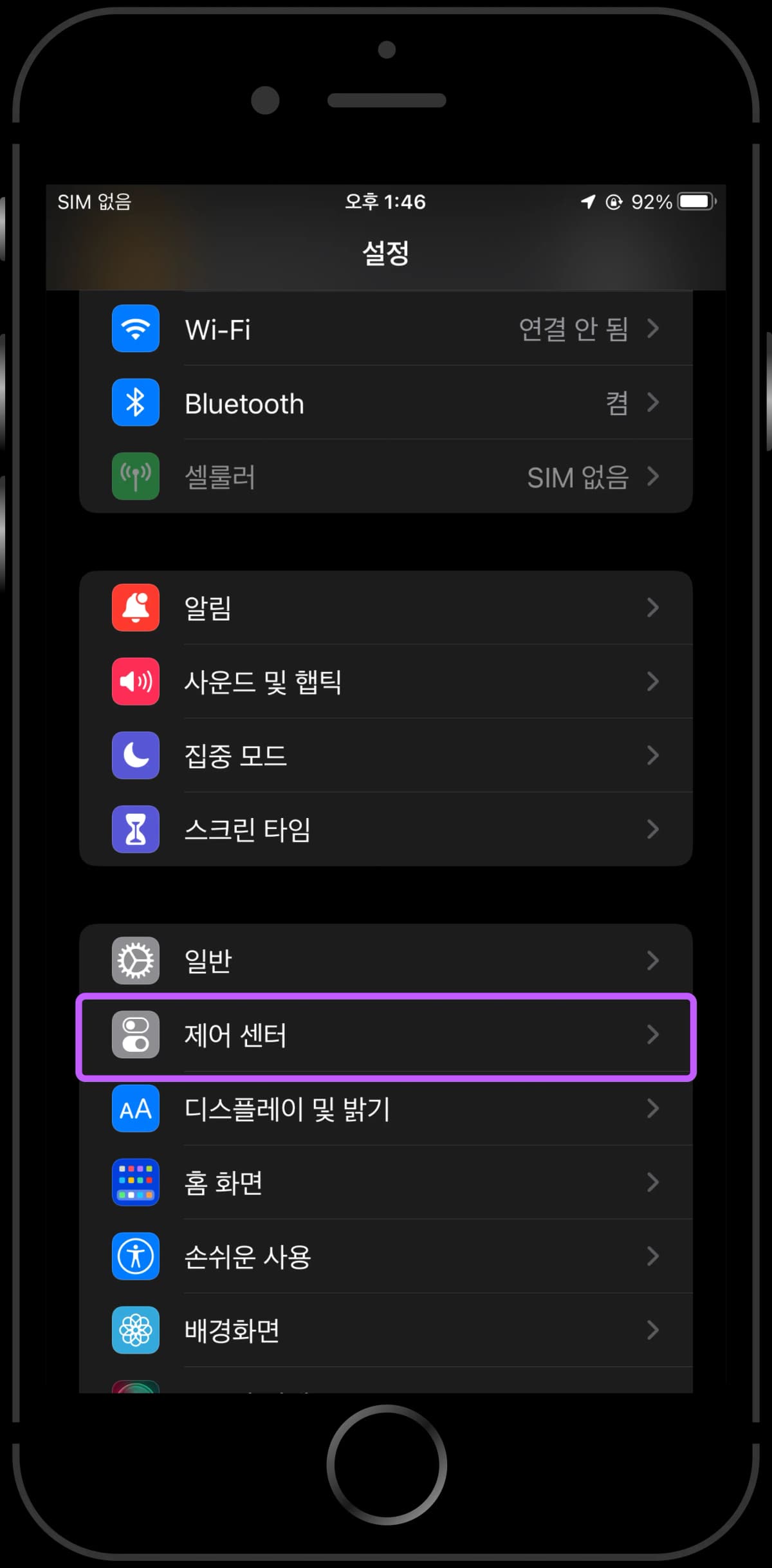
1. Go to Settings and select Control Center
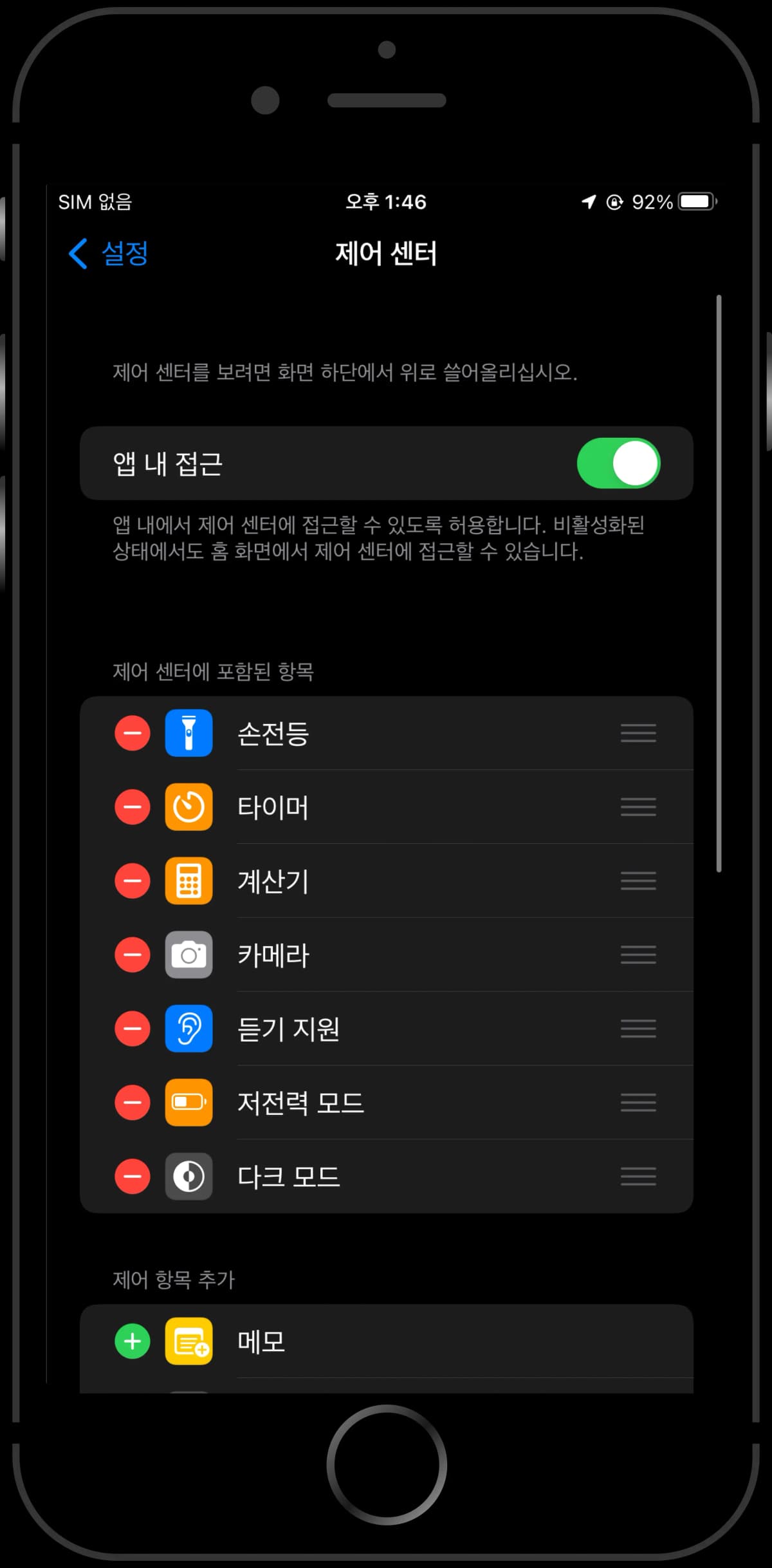
2. Scroll down to find NFC Tag Reader
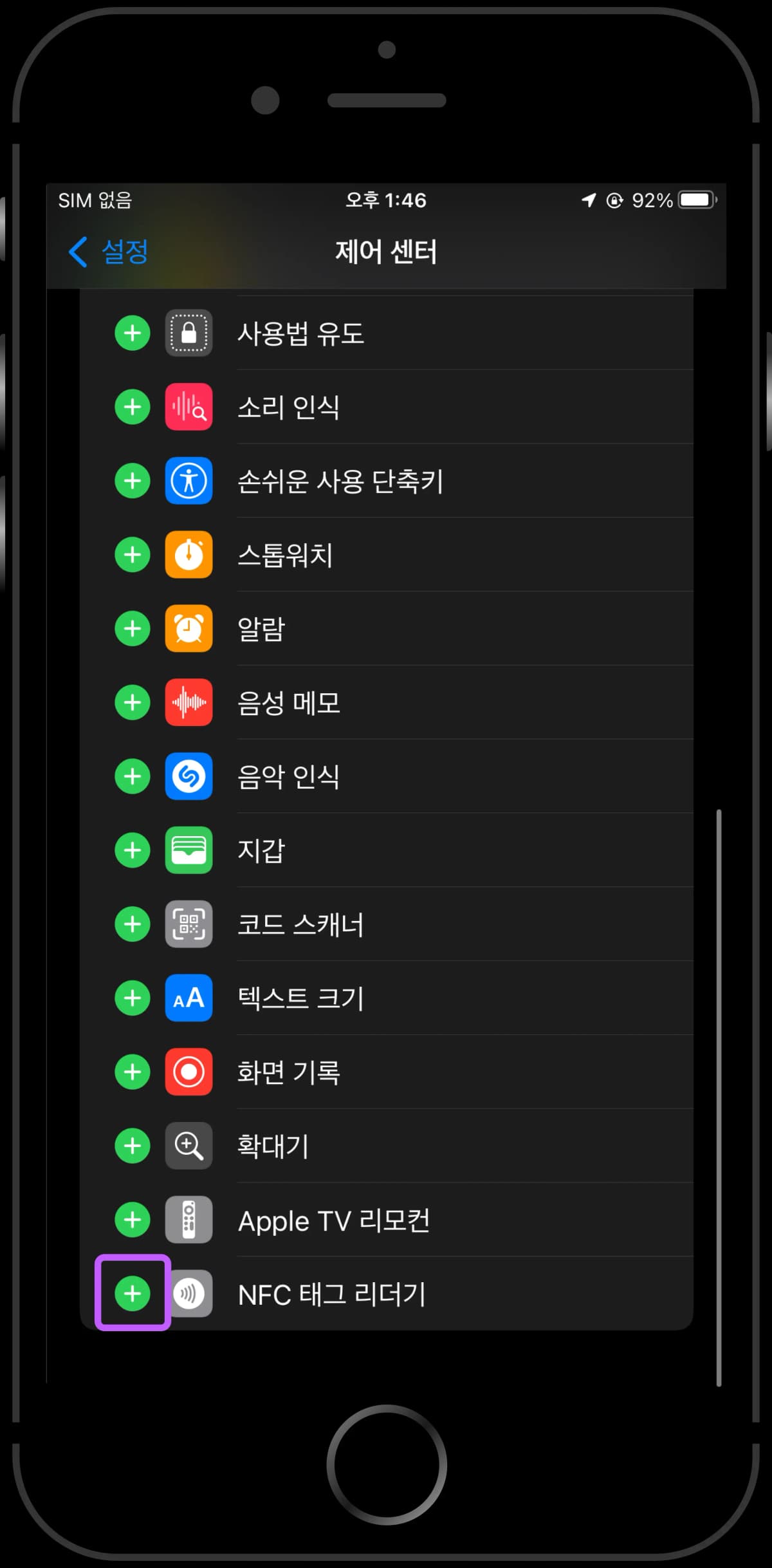
3. Click the add button on the left to add NFC Tag Reader
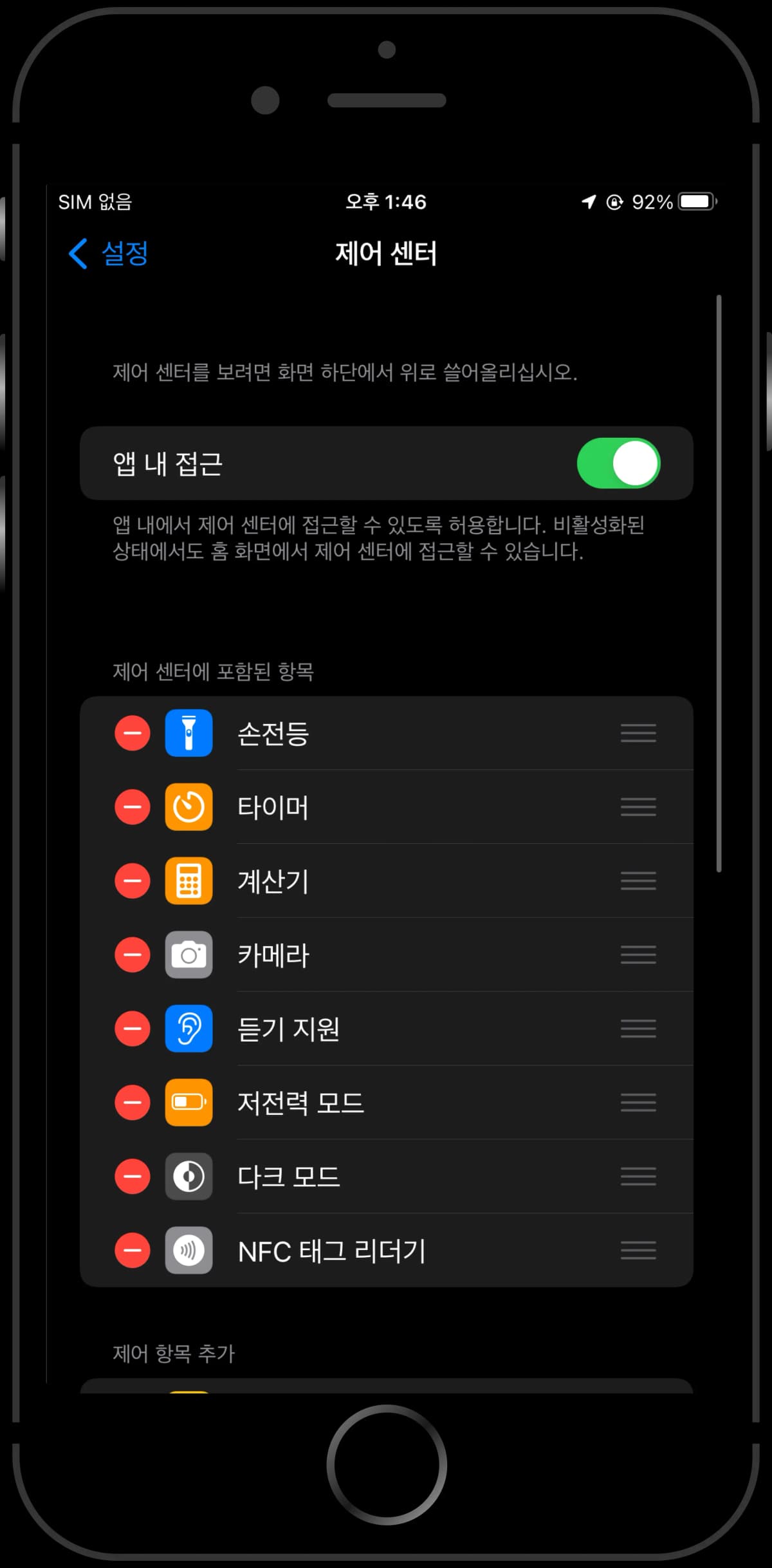
4. Confirm NFC Tag Reader has been added
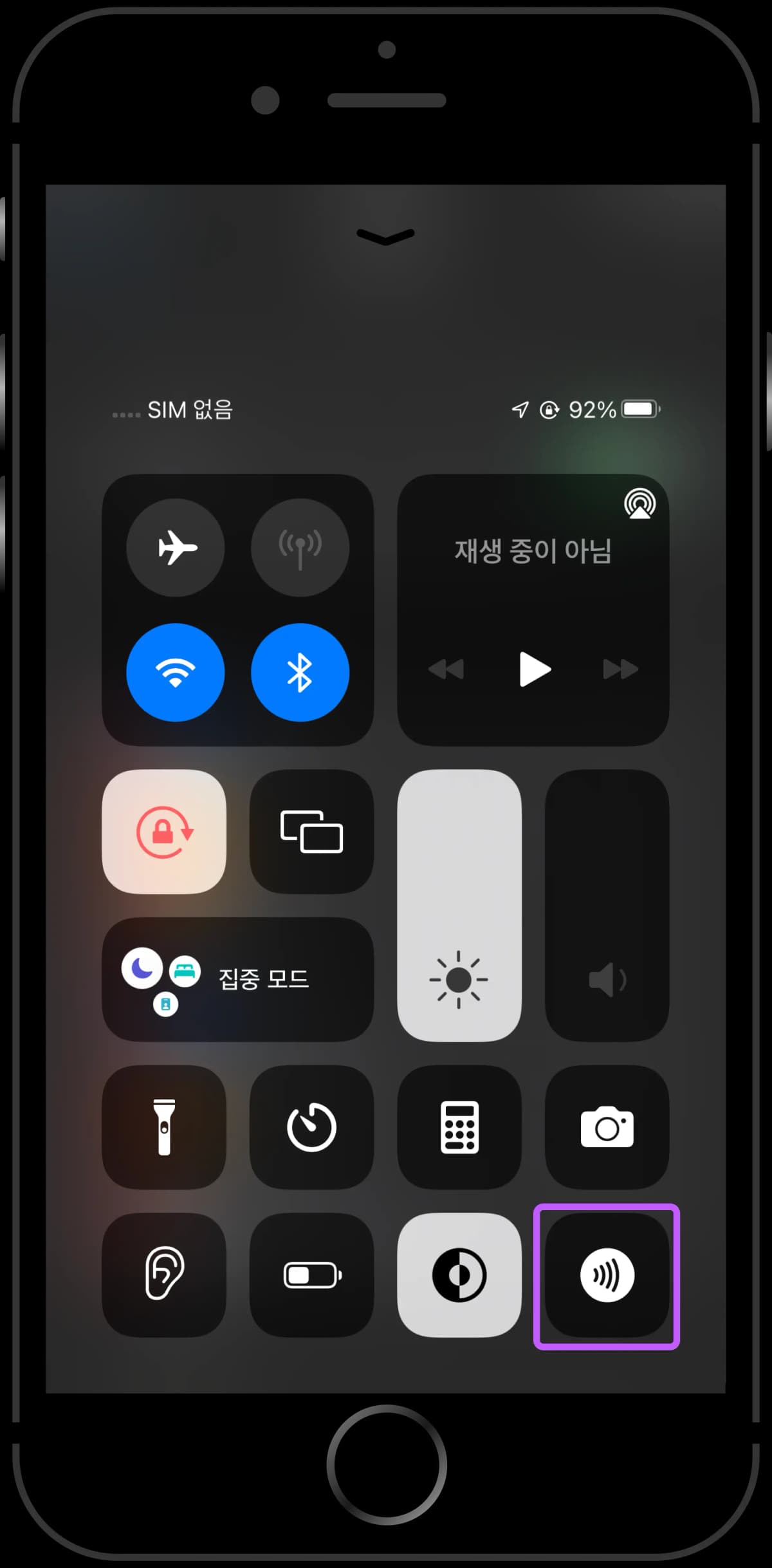
5. Click NFC Tag Reader icon in Control Center
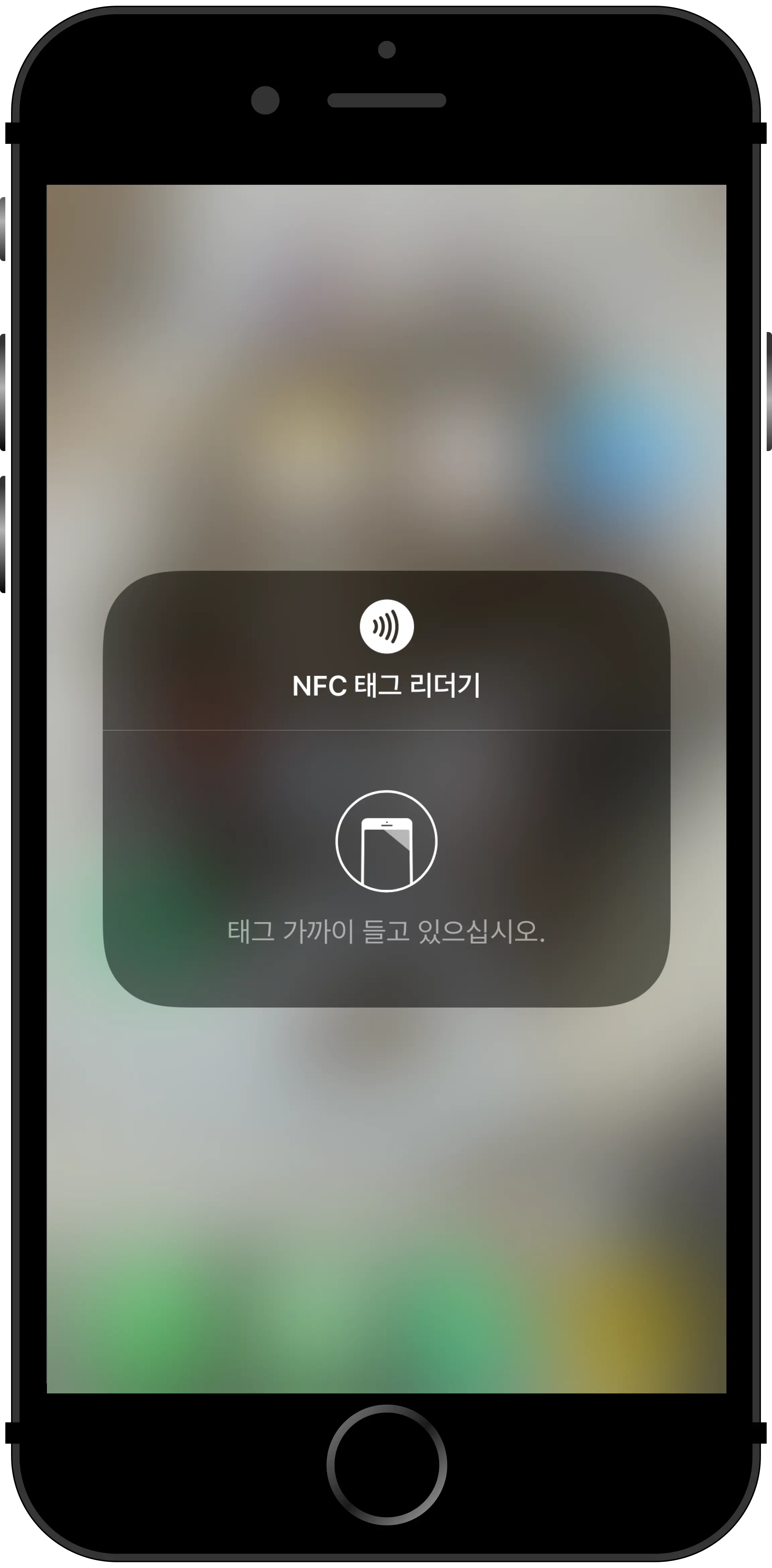
6. Recognize NFC tag
Step 3 Recognize NFC Tag
Please recognize the NFC tag at the correct location.
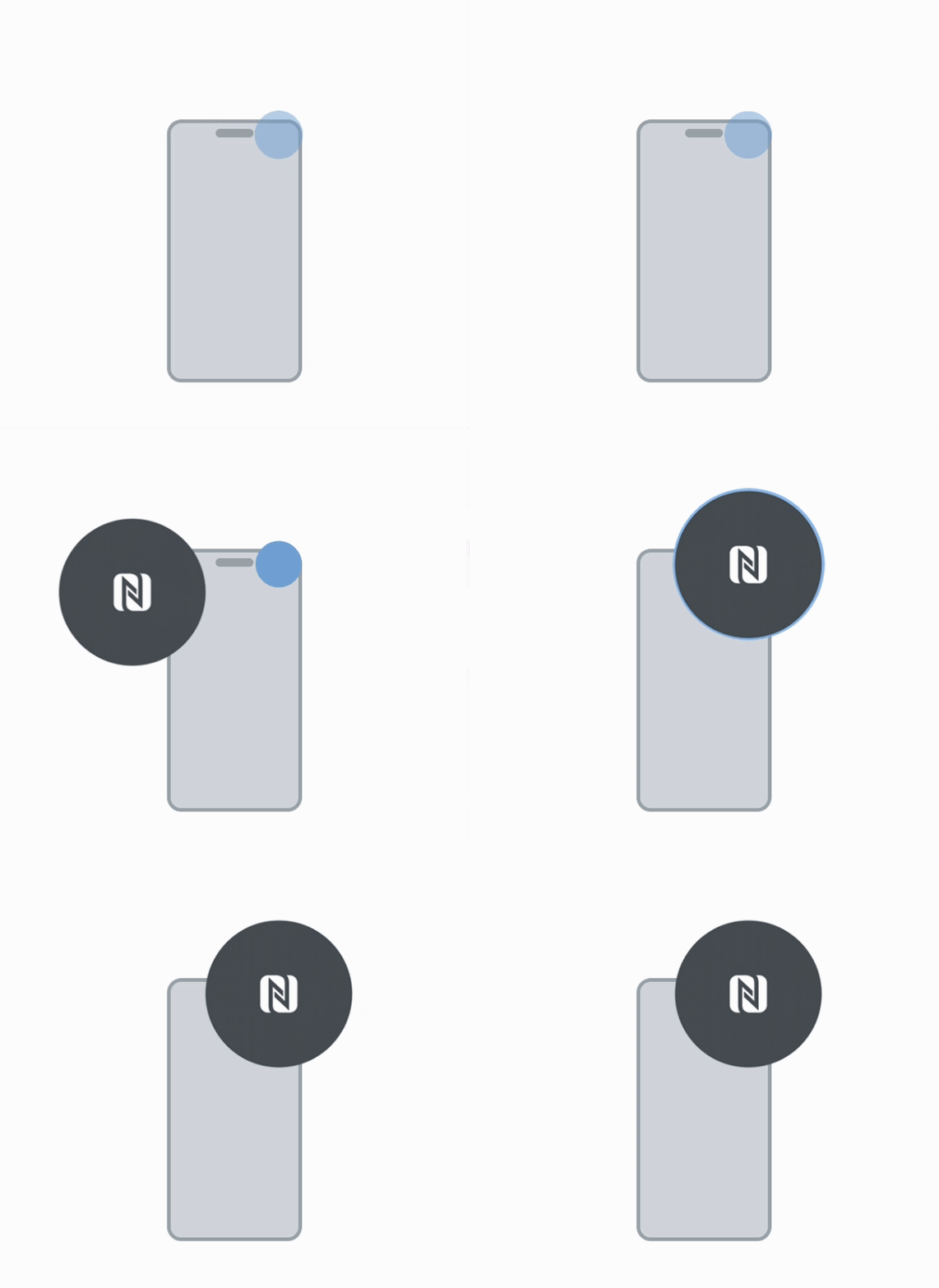
Step 3-1 iPhone NFC Recognition Timing Tip
iPhone receives NFC signals differently from Galaxy — timing is not consistent.
iPhone's web NFC works differently from transit cards or Apple Pay. Due to security policies, the NFC signal weakens after the screen has been on for about 10 seconds, and the signal is also weak when the screen is completely off. Please follow the timing tips below.
- Lock screen → Tag immediately as soon as the screen turns on (strongest signal moment)
- Tag immediately right after unlocking
- If the screen has been on for 10+ seconds, turn it off and back on, then tag immediately
Step 4 Check NFC Chip Damage
If the NFC tag still doesn't work after attempting, please follow the guide to check.
iPhone NFC FAQs
Common issues when setting up and using NFC on iPhone.
Can I use NFC on iPhone 6s?
iPhone 6s has NFC but it's limited to Apple Pay payments only. NFC tag reading is not supported. NFC tag functionality is available from iPhone 7 onwards (released after September 2016).
Do I need to set up NFC Tag Reader on iPhone XR and later?
From iPhone XR onwards, NFC is automatically enabled and you can recognize NFC tags without any setup. No need to add NFC Tag Reader to Control Center.
I don't see NFC Tag Reader in Control Center
This feature only applies to iPhone 7-X models (pre-iPhone XR). Go to Settings > Control Center, scroll down to 'More Controls', find 'NFC Tag Reader' and tap the + button. XR and later models don't have NFC Tag Reader in Control Center as it's automatic.
NFC tags are not recognized
iPhone's automatic NFC reading may be difficult at first. Check the following: 1) Remove thick or metal cases 2) Disable airplane or low power mode 3) Ensure screen is on and unlocked 4) The first 2-3 seconds after unlocking work best 5) Move the top of your phone slowly around the NFC tag 6) Remove signal interference (metal objects, etc.)
What can interfere with NFC tag recognition?
Yes, several factors can interfere. Thick cases (especially metal), wallet cases with credit or transit cards, nearby magnets or metal objects can make recognition difficult. Also, airplane mode or low power mode may limit NFC functionality.
Where should I place my iPhone when tagging?
iPhone's NFC antenna is at the top of the device. Hold the empty area next to the camera island or the top of the screen near the NFC tag. If using a case, try removing it or use a thinner case.
Apple Pay and transit cards work but NFC tags don't
Apple Pay and transit cards use iPhone's local NFC with longer range and faster speed. Web NFC is a separate function requiring shorter range and more precise positioning. This is a technical difference, not a defect. Hold the NFC tag closer to your phone and try slowly from different angles.
Have more questions?
Feel free to contact us anytime. We'll provide quick and accurate answers.

Contact Us

Company: VVFY STUDIO Inc. | CEO: Kyubaek Kim
Address: 213, 2F, S-Factory Ga(Bi) Bldg, 11, Yeonmujang 15-gil, Seongdong-gu, Seoul, Korea
Business Registration No.: 219-87-03830
Email: hello@vvfystudio.com
Privacy Officer: Kyubaek Kim
Hosting: Vercel
Terms of Service|Privacy Policy
© VVFY STUDIO ALL RIGHTS RESERVED.
VIVIFIED
Portfolio